
Change Password at LUCKYTOWN PLUS - Complete Guide
Why Keep Your Password Updated at LUCKYTOWN PLUS?




This guide covers three important account management scenarios available on LUCKYTOWN PLUS: how to change your login password when you are already logged in, how to recover your password if you have forgotten it, and how to retrieve your username if you have forgotten your account UID. All three processes are handled directly within the LUCKYTOWN PLUS app and can be completed quickly using your registered phone number and OTP verification.
LUCKYTOWN PLUS Change Login Password - Step-by-Step Guide for LUCKYTOWN Members Who Are Already Logged In


Step 1: Open the App and Tap Me
Launch the LUCKYTOWN PLUS app on your mobile device. On the main home page, look at the bottom navigation bar and tap on the Me icon located at the bottom right corner of the screen. This will bring you to your personal account dashboard where all your account settings and management tools are available.
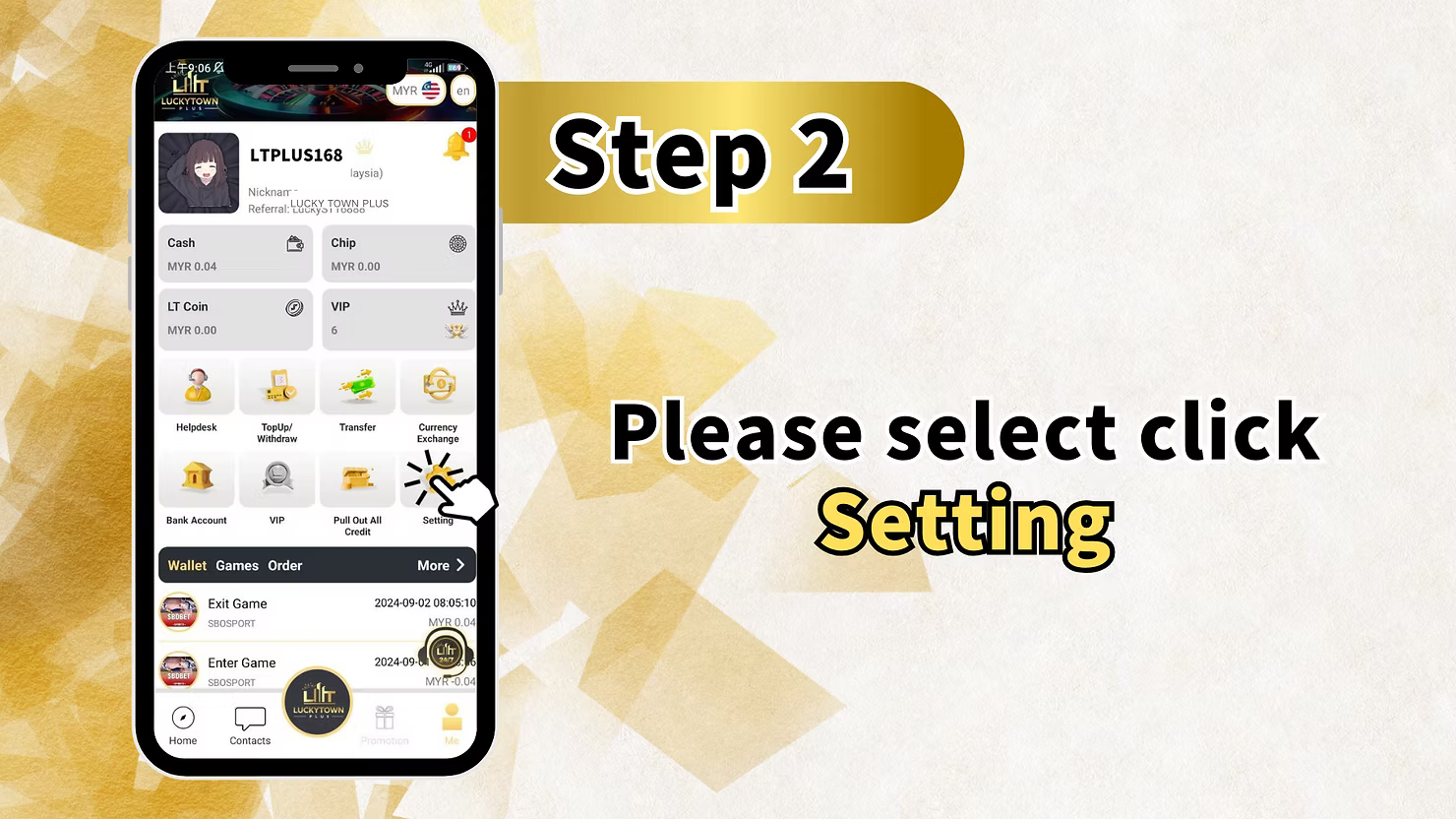
Step 2: Select Setting
On your personal account dashboard, you will see a row of quick action icons below your balance summary including Helpdesk, Top Up / Withdraw, Transfer, Currency Exchange, Bank Account, VIP, Pull Out All Credit, and Setting. Tap on the Setting icon to open the full settings menu for your account.
Step 3: Select Change Login Password
Inside the Setting menu, you will find a comprehensive list of account management options including Change Login Password, Change Payment Pin, Change Nickname, Change Phone Number, Switch Account, Pull Out All Credit, Google Authentication, Real Name Verification, English language settings, About Phone, About, Change App Icon, and Time Zone. Tap on Change Login Password at the top of the list to proceed to the password change screen.
Step 4: Enter Old Password, New Password, Confirm Password and Click Next
On the Change Login Password screen, you will see a form with three fields: Old Password, New Password, and Confirm Password. The page also shows a message stating that you should select one of any credentials to use for recovering your password. Enter your current login password in the Old Password field. Then enter your desired new password in the New Password field. Re-enter the same new password in the Confirm Password field to confirm the change. Once all three fields are filled in correctly, tap the Next button to submit the password change request.
After tapping Next, the system will display a Password Changed confirmation screen with a congratulations message stating that you have successfully changed your password. Tap the Next button on the confirmation screen to return to your account. Your new login password is now active and will be required the next time you log in to your LUCKYTOWN PLUS account.
LUCKYTOWN PLUS Forgot Password - How to Recover Your Password Without Logging In
Step 5: Go to the Login Page and Tap Forgot UID / Password
If you have forgotten your LUCKYTOWN PLUS login password and are unable to log in, open the LUCKYTOWN PLUS app on your device. On the Log In page, below the Username and Password fields, you will see two links: Forgot UID / Password and Contact Us. Tap on the Forgot UID / Password link to access the account recovery section. This link is accessible from the login page without requiring you to be logged in, making it easy to initiate password recovery at any time.
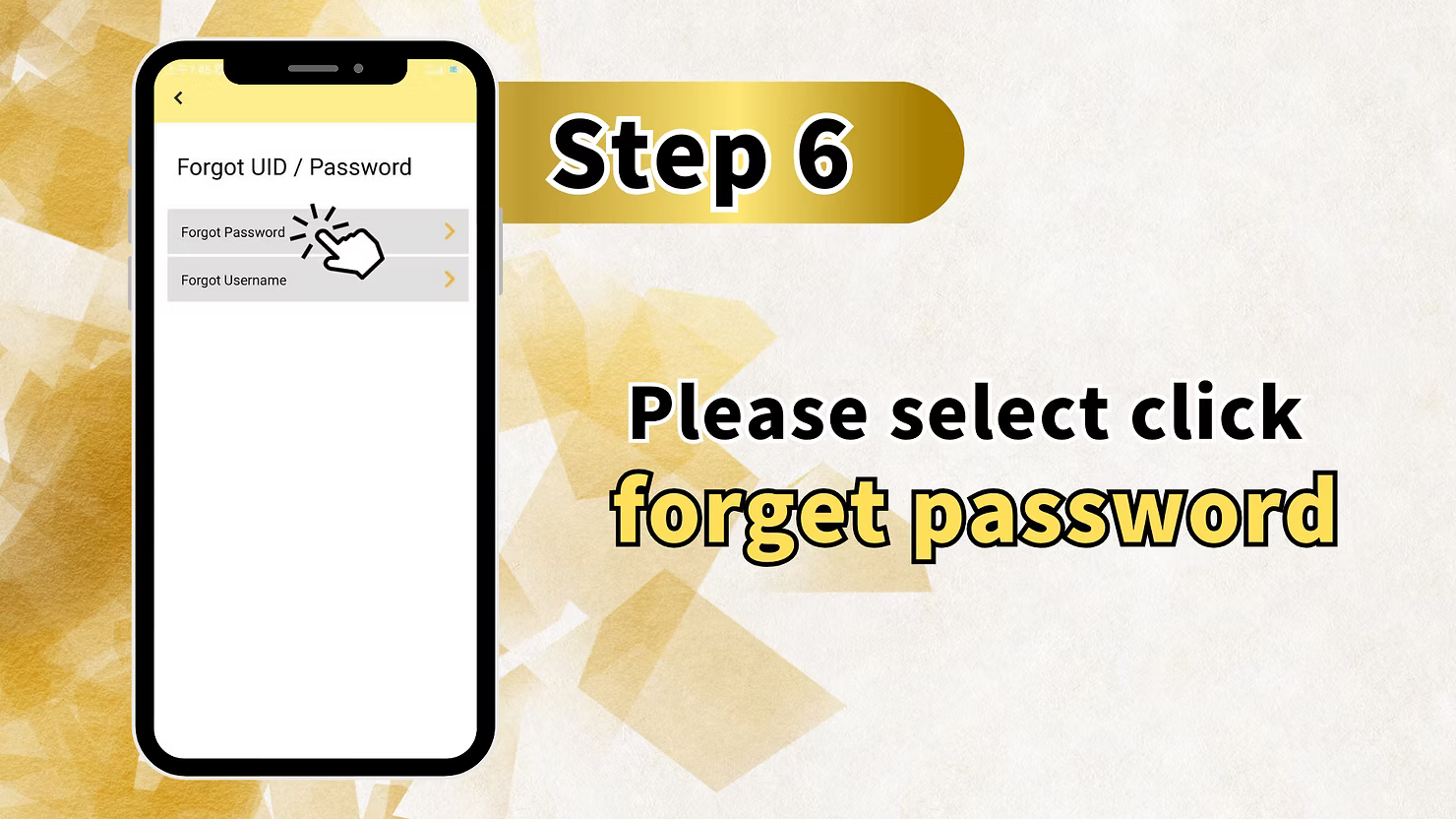
Step 6: Select Forgot Password
After tapping Forgot UID / Password, you will be taken to the Forgot UID / Password page which presents two recovery options: Forgot Password and Forgot Username. To recover your login password, tap on Forgot Password to proceed to the password recovery form.
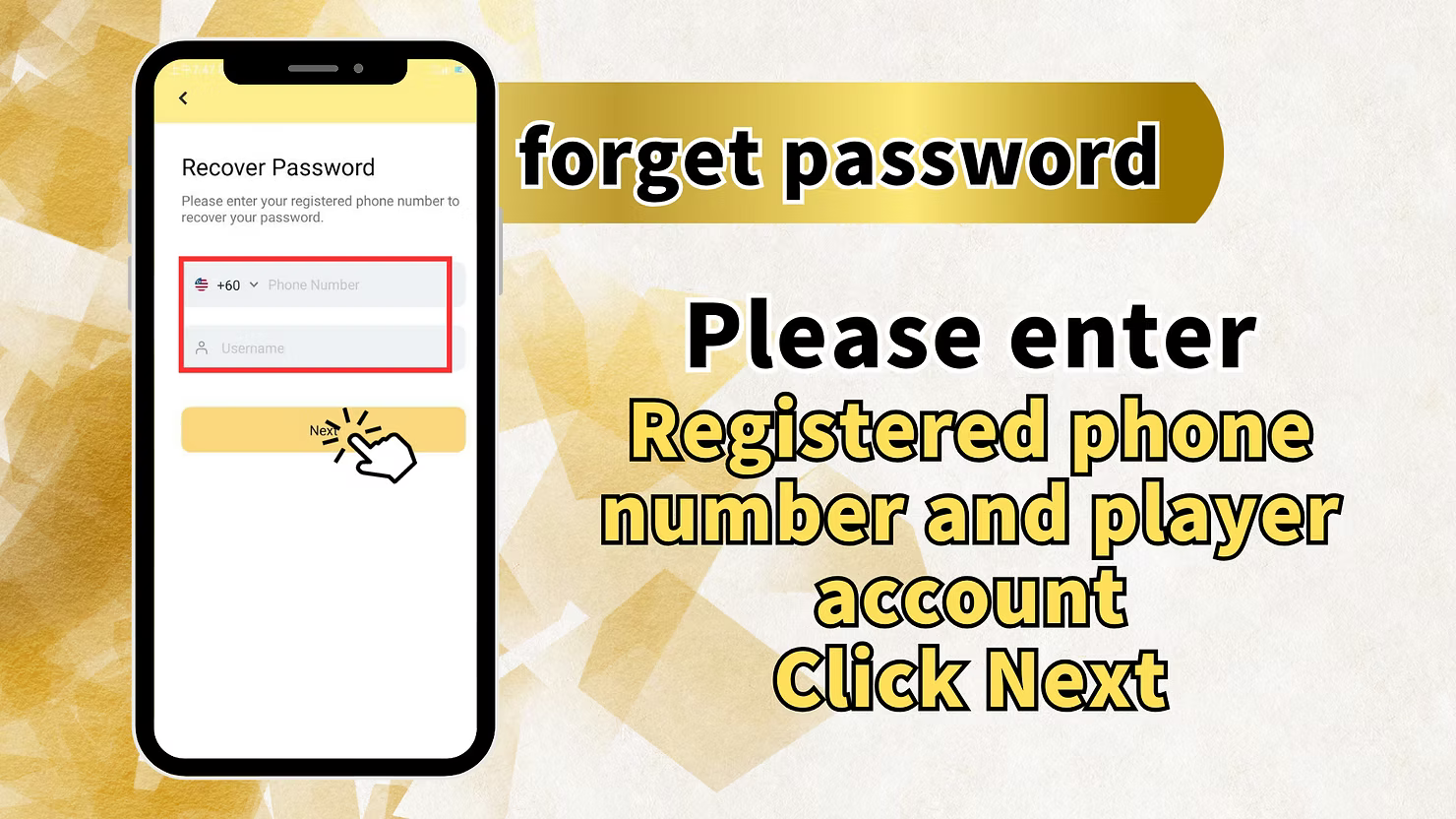
Step 7: Enter Your Registered Phone Number and Username, Then Click Next
On the Recover Password page, you will be asked to enter your registered phone number to recover your password. Enter your Malaysian phone number with the country code +60 in the phone number field. Then enter your account username in the Username field below. Once both fields are filled in correctly, tap the Next button to request your OTP verification code.
Step 8: Get OTP, Enter New Password, Confirm Password and Click Next
After tapping Next, you will be taken to the Change Login Password screen where an OTP code will be sent to your registered phone number. Tap the Get button next to the OTP field to request the one-time password. Once you receive the OTP via SMS, enter it in the OTP field. Then enter your desired new password in the New Password field and re-enter it in the Confirm Password field to confirm. Once all fields are completed, tap the Next button to submit your password reset.
After successful verification, the system will display a Password Changed confirmation screen with the message: Congratulations! You have successfully changed your password. Tap Next to return to the login page. You can now log in to your LUCKYTOWN PLUS account using your new password. Keep your new password in a safe place and never share it with anyone.
LUCKYTOWN PLUS Forgot Username - How to Retrieve Your Account UID
Step 9: Select Forgot Username on the Forgot UID / Password Page
If you have forgotten your LUCKYTOWN PLUS account username or UID, go to the login page and tap Forgot UID / Password. On the Forgot UID / Password page, you will see two options: Forgot Password and Forgot Username. Tap on Forgot Username to proceed to the username recovery section.
Step 10: Enter Your Registered Phone Number, Get OTP and Click Next to Retrieve Username
On the Recover Username page, enter your registered Malaysian phone number with the country code +60 in the phone number field. Then tap the Get OTP button to request a one-time password to be sent to your registered phone number. Once you receive the OTP, enter it in the OTP field and tap the Next button to retrieve your account username.
After successful OTP verification, the system will display a list of all usernames registered to your phone number. You can search through the list using the search bar or scroll to find your username. The accounts will be listed by username for easy identification. Once you have located your username, tap on it to return to the login screen with your username pre-filled. You can then log in normally using your password.
Other Account Settings Available in LUCKYTOWN PLUS
Change Payment PIN
In addition to changing your login password, the LUCKYTOWN PLUS Settings menu also allows you to change your 6-digit Payment PIN, which is used to authorize transactions such as withdrawals and bank account registration. To change your Payment PIN, go to the Setting menu in your account dashboard and tap on Change Payment Pin. Follow the on-screen instructions to update your PIN securely.
Google Authentication for Enhanced Account Security
LUCKYTOWN PLUS offers a Google Authentication option in the Settings menu for players who want an additional layer of security on their account. Enabling Google Authentication adds a two-factor verification step to your login process, significantly reducing the risk of unauthorized account access. It is highly recommended to enable this feature to keep your LUCKYTOWN PLUS account safe.
Real Name Verification
The Real Name Verification feature in the Settings menu allows you to verify your identity with LUCKYTOWN PLUS. Completing real name verification is recommended as it helps protect your account and ensures that withdrawal requests are processed smoothly. Verified accounts also benefit from additional account security protections.
Frequently Asked Questions About Password and Account Recovery
What should I do if I forget my LUCKYTOWN PLUS password
If you forget your LUCKYTOWN PLUS login password, go to the app login page and tap Forgot UID / Password. Select Forgot Password and enter your registered phone number and username. Request an OTP, enter the OTP you receive, set your new password, confirm it, and tap Next. The system will confirm that your password has been changed successfully.
What should I do if I forget my LUCKYTOWN PLUS username
If you forget your LUCKYTOWN PLUS username, go to the login page and tap Forgot UID / Password. Select Forgot Username, enter your registered phone number, request an OTP, and tap Next after entering the OTP. The system will display all usernames registered to your phone number so you can identify and recover your account.
Can I change my password from within the app if I am already logged in
Yes, if you are already logged in to your LUCKYTOWN PLUS account, you can change your login password at any time by going to the Me section, tapping Setting, and selecting Change Login Password. Enter your old password followed by your new password and confirm it. Once you tap Next, your password will be updated immediately.
What phone number do I use for OTP verification
The OTP for password and username recovery is sent to the phone number that you registered with your LUCKYTOWN PLUS account during sign-up. Make sure you have access to your registered phone number before initiating any recovery process. If you no longer have access to your registered phone number, please contact LUCKYTOWN PLUS customer support for assistance.
Need Help with Your Password or Account Recovery
If you are experiencing difficulties with changing your password, recovering your forgotten password, or retrieving your username on LUCKYTOWN PLUS, our customer support team is available 24 hours a day to assist you. Tap the Contacts icon in the bottom navigation bar of the app or use the Contact Us link on the login page to reach our live support team for immediate assistance.
Recover Your LUCKYTOWN PLUS Account Quickly and Securely Today
Whether you need to change your login password, recover a forgotten password, or retrieve your username, LUCKYTOWN PLUS makes account recovery simple and secure. Follow our step-by-step guide and regain access to your account in minutes using OTP verification via your registered phone number.
Recover Account Now