
Forgot Transfer Password at LUCKYTOWN PLUS - Complete Guide
Why Your Transfer Password Matters at LUCKYTOWN PLUS


The payment PIN on LUCKYTOWN PLUS protects withdrawals, transfers, and other sensitive balance actions. It works as an extra security layer, so only the account owner can approve payment-related requests.
This guide covers both situations from the workbook: changing your PIN when you still remember it, and resetting it when you have forgotten it. Follow the matching path below to keep your account access safe and uninterrupted.
LUCKYTOWN PLUS Change Payment PIN - Step-by-Step Guide for LUCKYTOWN Members Who Know Their Current PIN



Step 1: Open the account menu
Log in to your LUCKYTOWN PLUS account and open the profile or account area from the main interface.
Step 2: Enter Settings
Tap the settings option so you can access the account security tools linked to your profile.
Step 3: Select "Change Payment PIN"
Choose the payment PIN update option to open the form used for changing your current transfer password.
Step 4: Submit the new PIN
Enter your new 6-digit PIN, confirm it carefully, then continue with the on-screen confirmation button. Once the form is accepted, the system will show that your payment PIN has been updated successfully.
LUCKYTOWN PLUS Forgot Payment PIN - How to Recover Your Transaction PIN When You Cannot Remember It
Step 5: Open the deposit or withdrawal area
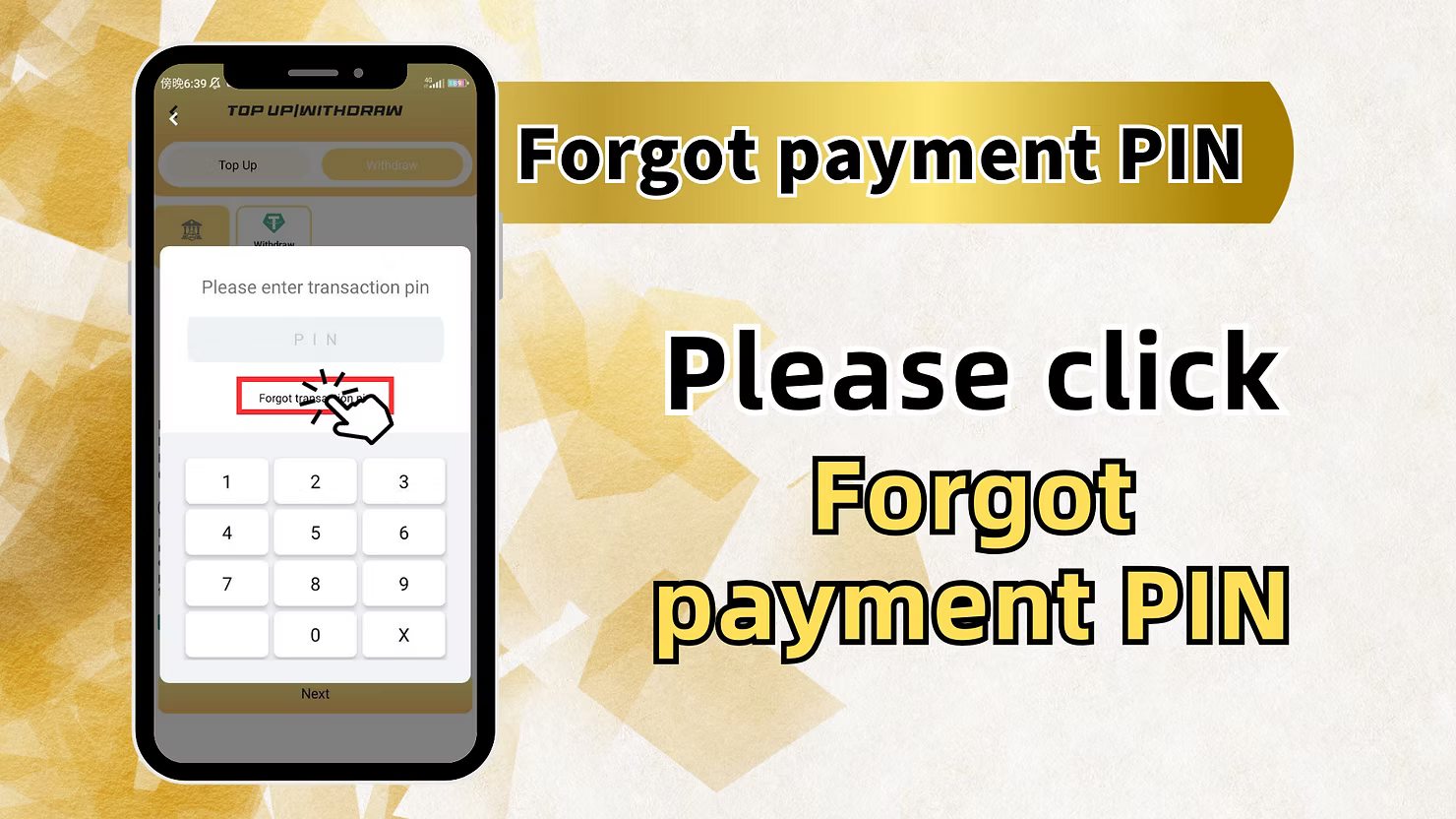
If you do not remember your payment PIN, start from the deposit or withdrawal section where the reset path is available.
Step 6: Tap "Forgot Payment PIN"
Select the forgot payment PIN option shown on the financial page to begin the official recovery flow.
Step 7: Confirm the reset request
When the confirmation prompt appears, choose the forgot payment PIN action again so the system can move you to identity verification.
Step 8: Enter your registered phone number
Provide the same Malaysia phone number used during account registration. This number is required for OTP verification and account matching.
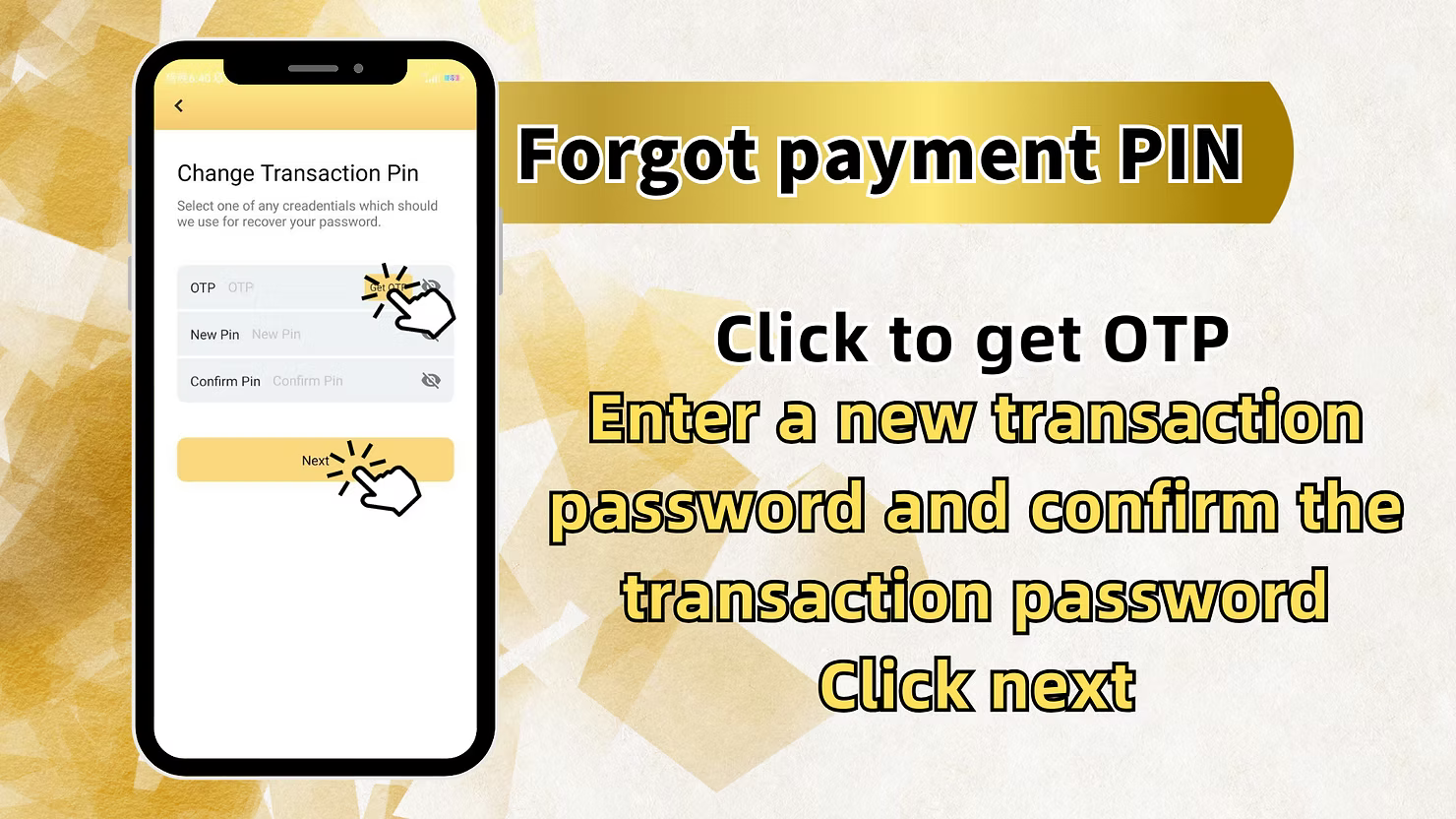
Step 9: Verify with OTP and create a new PIN
Request the OTP, enter the code once it arrives, then fill in your new 6-digit payment PIN and the confirmation field.
Step 10: Complete the reset
Press the next or confirm button to finish the process. After successful verification, LUCKYTOWN PLUS will display a completion message confirming that the new payment PIN is active.
Important Tips for Managing Your LUCKYTOWN PLUS Payment PIN Securely
Keep your payment PIN private and do not reuse an easy pattern such as `123456`, birthdays, or repeated digits.
Always make sure your registered phone number stays active because OTP verification is part of the reset process.
Do not share OTP codes, payment PIN details, or screenshots of your reset screen with anyone claiming to represent support.
If you suspect suspicious activity, update your login password and contact support before attempting more payment actions.
Frequently Asked Questions About Payment PIN Recovery
Can I change my payment PIN if I still know the current one?
Yes. Use the change payment PIN path in account settings and submit the new 6-digit PIN directly.
What if I forgot my PIN and no longer use my old phone number?
You should contact customer support because OTP verification depends on the registered number linked to your account.
Why is OTP required during PIN recovery?
OTP confirms that the reset request is being made by the account owner and helps prevent unauthorized access to withdrawals and transfers.
How long should I wait for the OTP?
Delivery usually takes a short time. If it does not arrive, recheck the registered number, network signal, and on-screen retry instructions.
Need Help Resetting Your Payment PIN on LUCKYTOWN PLUS
If the reset screen shows an error, the OTP does not arrive, or the phone number no longer matches your account, contact the official LUCKYTOWN PLUS support channel for direct assistance before making repeated attempts.
Reset Your Payment PIN Now
Use the official LUCKYTOWN PLUS account flow to change or recover your payment PIN securely, then return to your transactions with full account access restored.
Reset Payment PIN Now