
TNG Scan QR Top Up at LUCKYTOWN PLUS - Complete Guide
Why Choose TNG Scan QR for Top Ups at LUCKYTOWN PLUS?
LUCKYTOWN PLUS offers a fast and convenient deposit method through TNG Scan QR Topup. This method allows players to fund their gaming account instantly using the Touch n Go eWallet app by simply scanning a QR code. No manual bank transfer is needed, just scan, pay, and play.
There are two TNG deposit methods available on LUCKYTOWN PLUS: UPAY TNG and Go Pay TNG. Both methods follow a similar process but have different minimum deposit amounts and supported payment options. This guide will walk you through both methods in full detail.
UPAY TNG Topup - Step-by-Step Guide on LUCKYTOWN PLUS



Step 1: Tap Me on the Main Page
Open the LUCKYTOWN PLUS app on your smartphone. Once you are on the main home page, look at the bottom navigation bar. You will see icons for Home, Contacts, Promotion, and Me. Tap on the Me icon located at the bottom right corner of the screen to enter your personal account dashboard.
Step 2: Select Deposit / Withdrawal
After entering your personal account page, you will see your account balance details including Cash, Chip, LT Coin, and VIP level. Below your balance summary, you will find quick action icons such as Helpdesk, Top Up / Withdraw, Transfer, Currency Exchange, Bank Account, VIP, Pull Out All Credit, and Setting. Tap on the Top Up / Withdraw icon to proceed to the transaction page.
Step 3: Choose TNG Tab and Select UPAY
On the Top Up / Withdraw page, make sure you are on the Top Up tab. You will see several top-up method tabs at the top including Instant Top Up, Bank Transfer, Touch n Go, and Duit Now. Tap on the Touch n Go tab to switch to TNG deposit options.
Under the Select Deposit Method section, you will see available options such as UPAY, GoPay, and SpeedPay. Select UPAY to proceed with the UPAY TNG deposit method. The Bank Code field will automatically display Touch n Go as the selected payment provider.
Step 4: Fill in Topup Amount and Select Recharge Method
In the Topup Amount field, enter the amount you wish to deposit into your LUCKYTOWN PLUS account. The minimum deposit amount for UPAY TNG is RM10 and the maximum deposit amount is RM2,000 per transaction. Make sure the amount you enter falls within this range to avoid any failed transactions.
Next, tap on the Bank Code dropdown to select your preferred recharge method. Available options include Boost, GrabPay, ShopeePay, Maybank QR, and DuitNow. Choose the method that you have available on your device. Once you have filled in the amount and selected your recharge method, tap the Next button to proceed.
Step 5: Scan the QR Code to Complete Your Payment
After tapping Next, a Touch n Go QR code will be generated on your screen under the LUCKY TOWN PLUS name. The QR code is valid for a limited time only, so you must act quickly. Open your Touch n Go eWallet app, tap the Scan icon, and point your camera at the QR code to complete the payment.
Important: Do not refresh the page while the QR code is displayed. The QR code has a countdown timer, if it expires before you complete the scan, the transaction will time out and you will need to start the process again. Always ensure you have a stable internet connection before initiating the payment.
Step 6: Return to the App and Wait for Deposit Confirmation
Once you have successfully scanned the QR code and completed the payment via your Touch n Go eWallet, return to the LUCKYTOWN PLUS app. Your deposit will be processed automatically by the system and credited to your account balance.
If your deposit has not been credited within 15 minutes after completing the payment, please do not panic. Contact the LUCKYTOWN PLUS online customer service team directly through the in-app Contacts section or live chat for immediate assistance and manual processing.
Go Pay TNG Topup - Step-by-Step Guide on LUCKYTOWN PLUS

Step 1: Tap Me on the Main Page
Just like the UPAY method, start by opening the LUCKYTOWN PLUS app. On the home page, tap the Me icon at the bottom right corner of the navigation bar to enter your personal account page.
Step 2: Select Deposit / Withdrawal
On your personal account dashboard, locate and tap the Top Up / Withdraw icon to go to the transaction page where all deposit and withdrawal options are available.
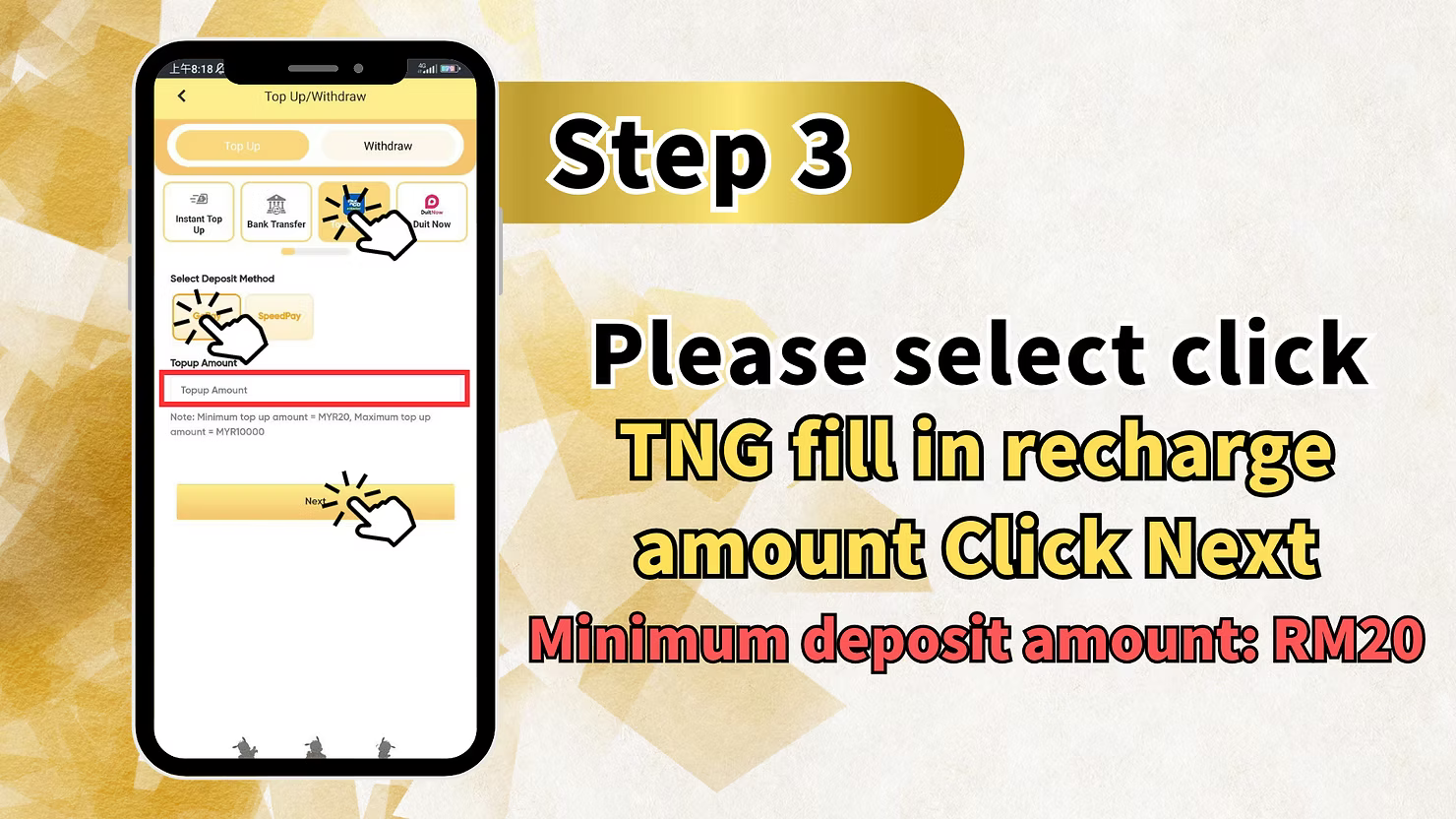
Step 3: Choose TNG Tab and Fill in Recharge Amount
On the Top Up / Withdraw page, tap the Touch n Go tab. Under Select Deposit Method, you will see options available for Go Pay TNG. Select your deposit method, then fill in the Topup Amount field with your desired deposit amount. For Go Pay TNG, the minimum deposit amount is RM20 and the maximum deposit amount is RM10,000 per transaction. Once done, tap the Next button.
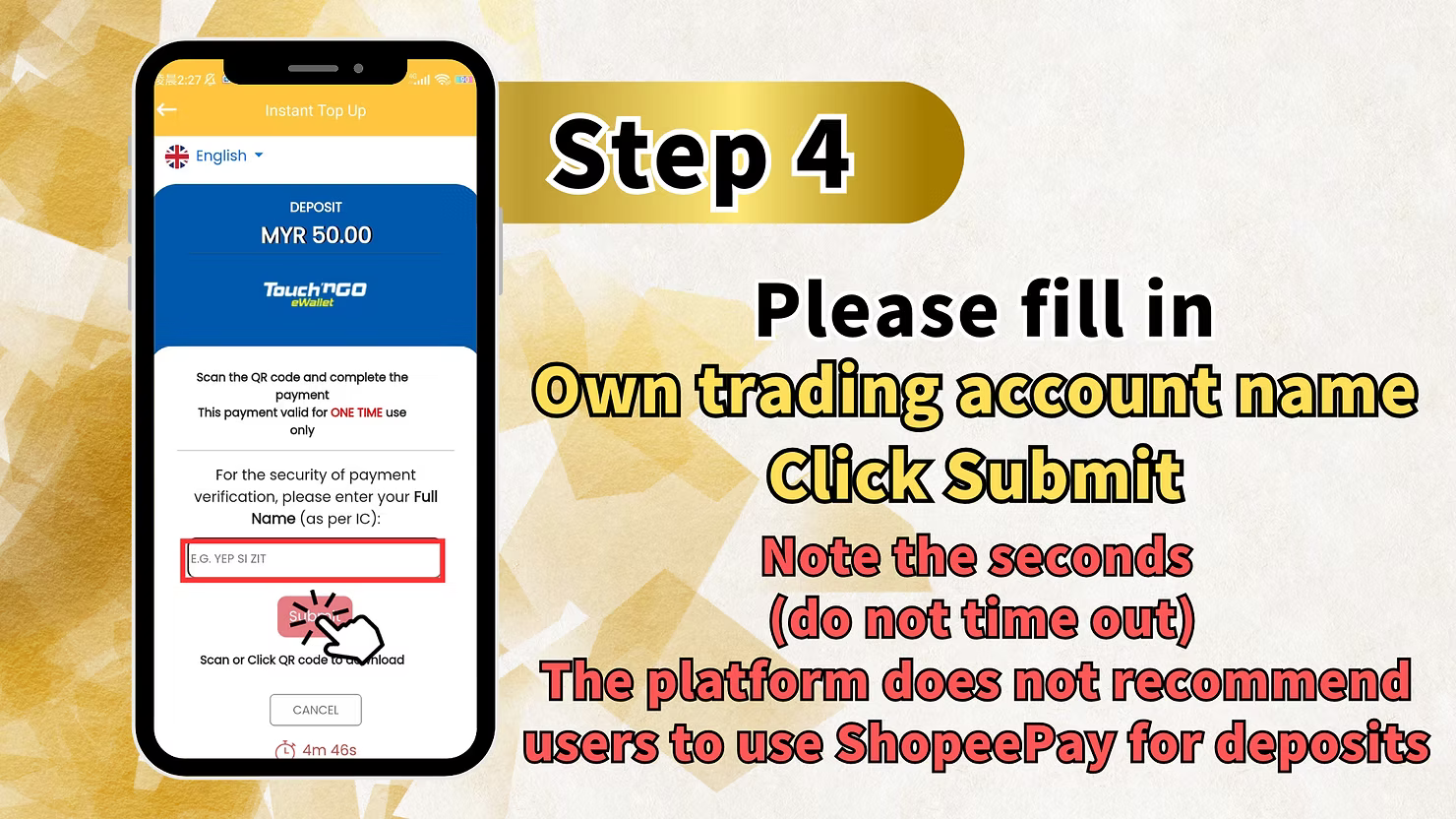
Step 4: Enter Your Full Trading Account Name and Submit
On the next screen, you will be asked to enter your Full Name as per IC for payment verification purposes. This is required to verify your identity and ensure the deposit is credited to the correct account. Enter your full trading account name in the field provided and tap Submit to generate the QR code.
Please note: The platform does not recommend users to use ShopeePay for Go Pay TNG deposits. Also, pay close attention to the countdown timer on this page, do not allow the session to time out before completing the submission.
Step 5: Scan the QR Code to Transfer Money
After submitting your details, a Touch n Go QR code will be displayed on the Instant Top Up screen. The QR code is valid for one-time use only. Open your personal recharge software or Touch n Go eWallet app, tap Scan, and scan the QR code to transfer the payment amount.
The QR code page will display the transaction amount, the payee name LUCKY TOWN PLUS, and the expiry time. Make sure to complete the scan before the timer runs out. Do not refresh or close the page during this process.
Step 6: Return to the App and Await Processing
After completing the QR code scan payment, return to the LUCKYTOWN PLUS app and wait for the system to process and credit your deposit. The transaction is usually instant but may take a few minutes depending on network conditions.
If the deposit is not reflected in your account within 15 minutes, contact LUCKYTOWN PLUS online customer service immediately via the Contacts section in the app for assistance. Do not make a duplicate payment before contacting support.
Key Differences Between UPAY TNG and Go Pay TNG on LUCKYTOWN PLUS
Minimum and Maximum Deposit Limits
UPAY TNG has a minimum deposit of RM10 and a maximum of RM2,000 per transaction. Go Pay TNG has a higher minimum deposit of RM20 but allows a much higher maximum of RM10,000 per transaction. Choose the method that best suits your deposit needs.
Supported Payment Methods
UPAY TNG supports multiple recharge methods including Boost, GrabPay, ShopeePay, Maybank QR, and DuitNow. Go Pay TNG requires your full trading account name for identity verification before generating the QR code. Note that the platform does not recommend ShopeePay for Go Pay TNG deposits due to reliability concerns.
QR Code Validity and Timeout Warning
Both UPAY TNG and Go Pay TNG generate a one-time use QR code with a countdown timer. You must scan and complete the payment within the allotted time. If the QR code expires, you will need to restart the deposit process. Always ensure your internet connection is stable and your Touch n Go eWallet has sufficient balance before starting.
Why Use TNG Scan QR Topup on LUCKYTOWN PLUS
Fast and Instant Deposit Processing
TNG Scan QR Topup is one of the fastest deposit methods available on LUCKYTOWN PLUS. Once you scan the QR code and complete the payment, your account balance is typically updated within minutes, allowing you to get back to your favourite games without long waiting times.
Secure and Verified Payment Process
All TNG QR deposits on LUCKYTOWN PLUS go through a secure payment verification process. For Go Pay TNG, an additional identity verification step requiring your full name as per IC ensures that all deposits are safely credited to the correct account.
Multiple eWallet Options Supported
LUCKYTOWN PLUS supports a wide range of eWallet payment options through the TNG topup method including Touch n Go eWallet, Boost, GrabPay, Maybank QR, and DuitNow. This gives players the flexibility to choose their preferred payment channel for a seamless deposit experience.
Frequently Asked Questions About TNG Scan QR Topup
What is the minimum deposit for TNG Scan QR Topup
The minimum deposit for UPAY TNG is RM10 per transaction. For Go Pay TNG, the minimum deposit is RM20 per transaction. Always check the deposit limits before submitting your top-up request.
What should I do if my deposit is not credited after 15 minutes
If your LUCKYTOWN PLUS account has not been credited within 15 minutes after completing the TNG QR scan payment, please contact the online customer service team immediately via the in-app Contacts section or live chat. Provide your transaction reference number and payment screenshot for faster processing.
Can I use ShopeePay for TNG Topup
While ShopeePay is listed as one of the recharge options under UPAY TNG, the LUCKYTOWN PLUS platform does not recommend using ShopeePay for Go Pay TNG deposits. For the best experience, it is advisable to use Touch n Go eWallet, Boost, GrabPay, Maybank QR, or DuitNow for your deposits.
What happens if the QR code expires before I scan it
If the QR code countdown timer reaches zero before you complete the scan, the transaction session will expire. You will need to return to the Top Up page and restart the deposit process from the beginning. To avoid this, always ensure you have your Touch n Go eWallet app ready and your balance is sufficient before generating the QR code.
Start Your TNG Scan QR Topup on LUCKYTOWN PLUS Today
Depositing on LUCKYTOWN PLUS has never been easier. Use TNG Scan QR Topup to fund your account instantly with just a few taps. Choose from UPAY TNG or Go Pay TNG, scan the QR code, and you are ready to play. Minimum deposit starts from RM10.
Top Up Now